Configuration
When you install ESU Lite, a time progress bar will automatically be added to every epic without any configuration necessary.
Optionally Administrators can add a completed work items/issues progress bar and a status category progress bar to the Summary Panel. Adding these will make them visible for everyone.
To add the additional progress bars to the Summary Panel, you need to open up the configuration first. You can do this by clicking on the cog icon in the bottom right corner.
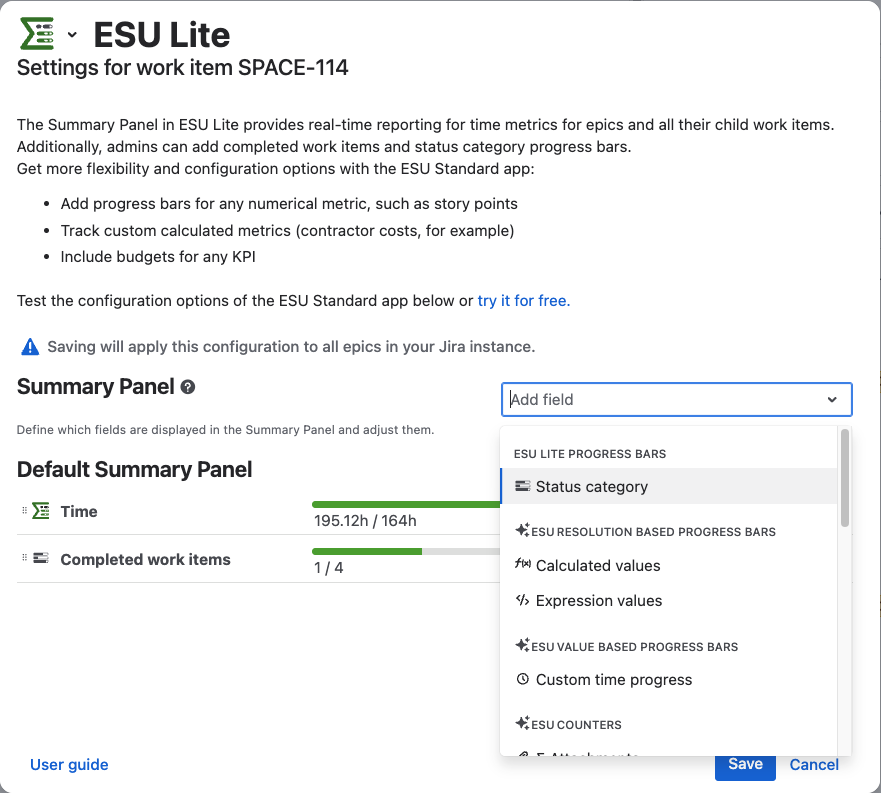
Here in the configuration, you need to open up the progress bar selector. There you’ll see the 2 progress bars directly at the top. Click on each to add them to the Summary Panel.
Progress bar configuration options
Options for every progress bar
Every progress bar has two include toggles: Include epic and includes substasks. By default both are on.
The include epic toggle defines if the values of the epic are included in the calculation. When it’s on, the values will be taken into account. When it’s turned off, they won’t be.
The include subtasks toggle works the same way, only with subtasks.
You can define a custom name for every progress bar.
Progress format
In the completed work items/issues progress bar, you can choose between two progress formats:
-
Resolved / Total
-
x% (Resolved / Total)
Time progress bar options
The time progress bar offers some additional configuration options unique to this progress bar.
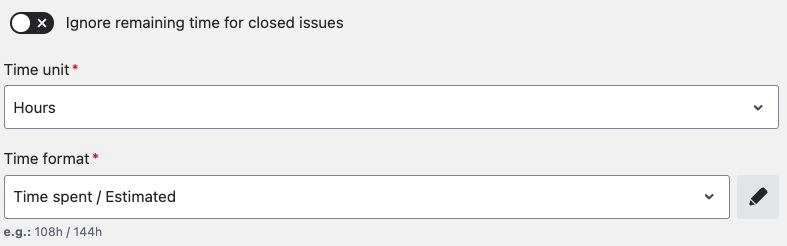
The first is the ‘Ignore remaining time for closed issues’. If you turn this toggle on the remaining time for closed work items/issues won’t be part of the calculation.
ESU Lite offers 3 Time unit options:
-
Hours
-
Days
-
Jira (4h 25m)
By default ‘Hours’ will be selected.
There are 4 Time format options in ESU Lite:
-
Time spent / Estimated
-
x% (Time spent / Original estimate)
-
Time spent / Total / Remaining
-
Time spent / Estimated / Remaining